
Hyphoon user guide
Monitor every tire with confidence.
Hyphoon works with compatible Bluetooth Low Energy tire-pressure sensors. It shows live pressure, temperature, sensor battery status, alerts, history, and multiple vehicles. Hyphoon is available on iPhone; its Android version is still under review. For Android phone monitoring with the listed 2-, 3- and 4-sensor kits, use Spedal Link. CarPlay display requires Hyphoon iOS and a compatible iPhone and CarPlay system.
Updated October 6, 2026
Safety comes first
Hyphoon is an assistance tool. Stop in a safe place before changing settings or inspecting a tire. Recommended pressure must come from the vehicle placard, vehicle manual, or tire manufacturer—not from the app. Trend analysis never replaces a cold-tire measurement or professional inspection.
Start here
Quick start
- 01
Install the app
Download Hyphoon, turn on Bluetooth, and allow the requested Bluetooth and notification permissions.
- 02
Create a vehicle
Choose a built-in layout or create a custom layout, then name the vehicle and its tire positions.
- 03
Bind the sensors
Scan each sensor QR code, scan for nearby compatible BLE sensors, or enter its sensor ID manually. Monitoring starts automatically after the first successful binding; later bindings preserve your active or paused choice.
- 04
Set safe limits
Open Settings > Alert limits and enter the low-pressure, high-pressure, and high-temperature limits recommended for your vehicle and tires.
- 05
Confirm live readings
Wake the sensors safely and check the actual monitoring status below the Dashboard switch. Before setting off, confirm a current pressure and temperature reading for every assigned tire.
- 06
Allow background monitoring
Keep Bluetooth and notifications enabled. On Android, allow background operation and remove excessive battery restrictions; Android 10 and 11 also require background location permission for background BLE monitoring.
External valve sensor
Install the sensor securely
Use these steps for a compatible screw-on sensor supplied with an anti-theft nut. Park safely, switch off the vehicle, check the actual tire pressure, and remove the valve cap before starting.
Watch the installation animation
0:32English animation.
Download the video (MP4)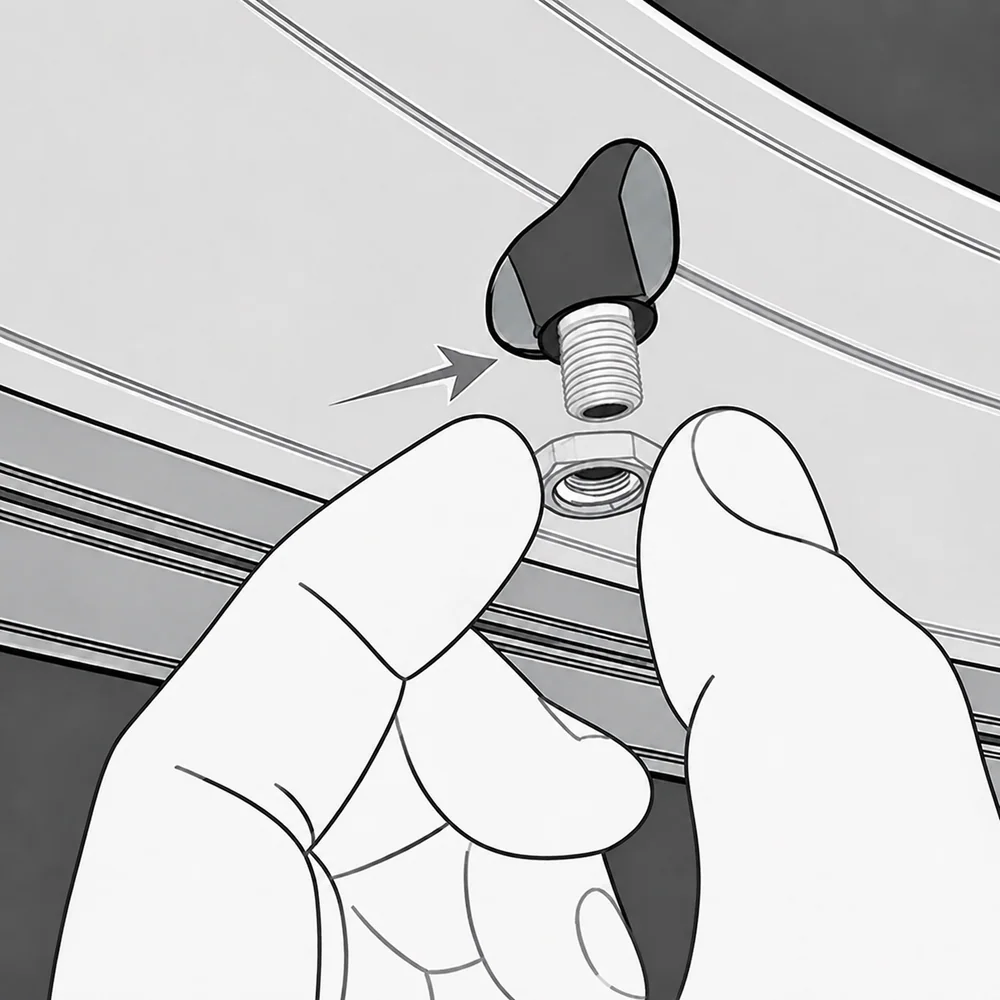 01
01Install the anti-theft nut
Thread the anti-theft nut onto the tire valve and turn it down the valve stem, leaving room for the sensor.
 02
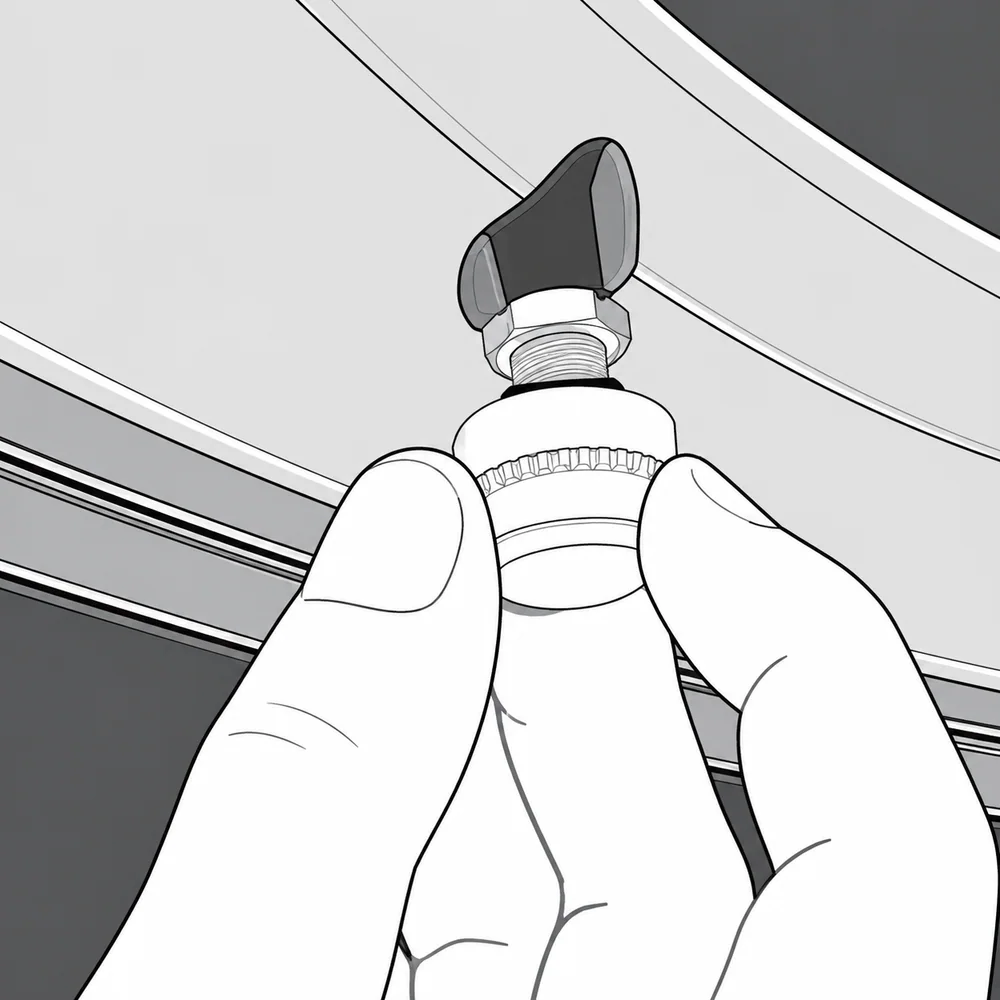
02Screw on the sensor
Turn the sensor clockwise onto the tire valve by hand until it is firmly seated. Keep it straight and do not force the threads.
 03
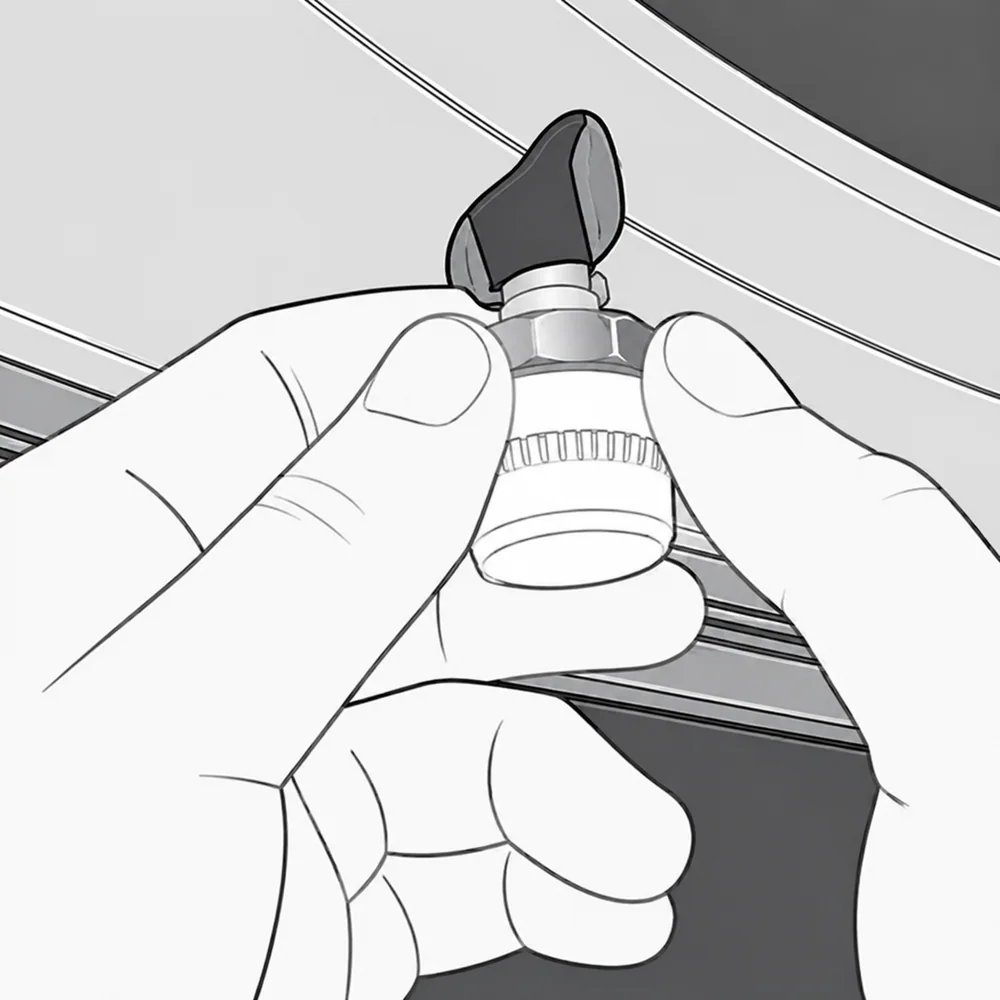
03Bring the nut to the sensor
Turn the anti-theft nut back toward the sensor until the nut rests against the bottom of the sensor.
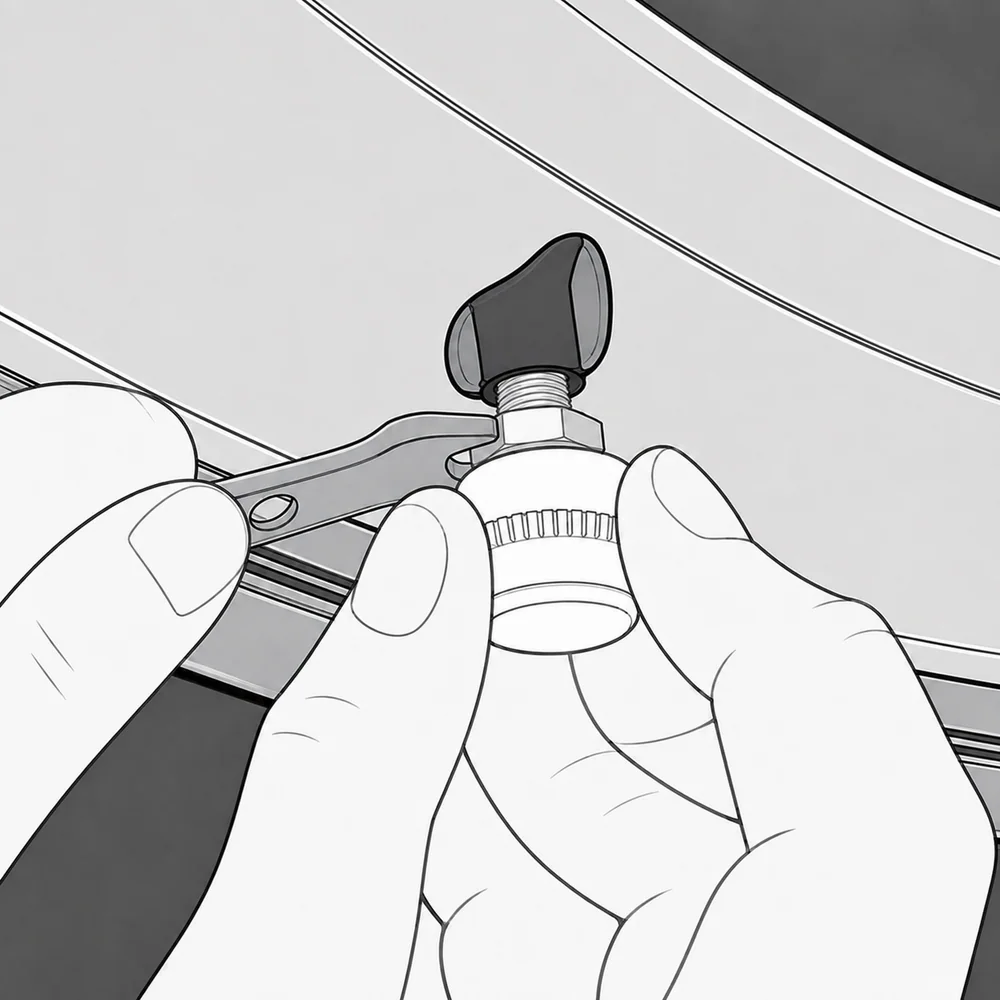 04
04Lock the sensor in place
Hold the sensor steady, then use the supplied wrench to tighten the anti-theft nut against it.
Step-by-step animation
Replace the CR1632 battery
For the Hyphoon sensor shown in this animation, use a new CR1632 battery and the supplied wrench. Loosen the anti-theft nut and remove the sensor from the tire valve before opening it.
Watch the battery replacement animation
0:37English animation.
Download the video (MP4)- 01
Prepare the battery and wrench
Use a new CR1632 battery and the supplied wrench.
- 02
Open the sensor
Hold the sensor cover and use the wrench on the hex fitting. Viewed from the hex fitting, turn counterclockwise as shown.
- 03
Remove the old battery
Use the wrench handle to slide the old battery out, following the animation.
- 04
Insert the new battery
Fit the new CR1632 battery in the same orientation as the removed battery.
- 05
Refit the cover
Align the cover and lower it onto the sensor base.
- 06
Tighten and reinstall
Viewed from the hex fitting, turn clockwise as shown. Reinstall the sensor and secure the anti-theft nut.
Status
Understanding the readings
Current
A recent broadcast has been received from the sensor.
Old data
The last valid reading is retained, but no recent broadcast has arrived. Do not treat it as a current normal reading.
No data yet
The assigned sensor has not provided its first valid reading.
Live tire monitoring
The Dashboard shows pressure, temperature, sensor battery voltage or low-battery status, the last received time, and data freshness for every tire position.
Open Settings > Home screen style to preview and choose the standard card view or dashboard view. A tire card with an arrow opens the tire details. Pressure can be displayed in PSI, Bar, or kPa, and temperature in °C or °F.
The monitoring switch at the top right of Dashboard and Activity controls all vehicles. Switching the displayed vehicle does not change the monitoring scope. Check the status below the switch: an enabled switch alone does not confirm reception if Bluetooth or permissions are unavailable.
- Monitoring starts automatically after the first successful sensor binding. Later bindings and newly added vehicles preserve your choice: sensors join active monitoring, while a paused state stays paused.
- The last valid reading remains visible when reception is temporarily interrupted and is clearly marked as old.
- A tire that has never produced a reading is shown differently from one with stored readings that are temporarily stale.
- Spare tires keep their own sensor, readings, history, and alerts.
Three-level safety alerts
Hyphoon classifies abnormal conditions by urgency. Level 1 calls for attention, such as a possible slow leak or low sensor battery. Level 2 recommends prompt inspection for low pressure, high pressure, or high temperature. Level 3 recommends slowing down and stopping safely for a rapid leak, severe pressure abnormality, or extreme heat.
- Open Settings > Notifications and audio to configure tire-alert notifications, tones, and localized voice warnings separately. Tones and voice can play together, and you can preview each alert level.
- Foreground audio can still play when tire-alert notifications are disabled. Background alerts require notifications and the relevant system permission. On iOS, system notifications play built-in audio in the background; silent mode, Focus, calls, and audio-output changes may affect playback.
- While a condition continues, Level 3 repeats about every 2 minutes, Level 2 every 5 minutes, and Level 1 every 20 minutes. These are approximate repeat intervals; delivery depends on the operating system.
- Mute one tire for 15 minutes, 1 hour, or until it returns to normal. Normal readings automatically resolve the event.
- An audio queue prevents warnings from talking over one another when several sensors are abnormal.
- Low sensor battery is maintained as a separate service reminder and is not misclassified as a pressure event.
Background monitoring
With monitoring enabled, the app can continue receiving compatible BLE sensor broadcasts in the background. Android uses a foreground monitoring service; iOS uses Bluetooth background capability and local notifications. Reopening the app synchronizes the latest saved readings and history samples.
On Android 10 and 11, grant background location permission for background BLE monitoring. This permission is not used to continuously track your location. Also allow background operation and review the phone manufacturer’s battery restrictions.
A sensor may broadcast less frequently while stationary, so a short gap between updates does not necessarily mean a fault. Open the app and confirm current readings before setting off. Adding another sensor will not resume monitoring if you have paused it.
Vehicles and tire layouts
Create multiple independent vehicle profiles. Each vehicle can have its own name, sensor assignments, alert limits, history, and parking location.
Built-in layouts include bicycle, motorcycle, delta trike, tadpole trike, passenger car, and custom vehicle.
- Custom layouts support up to 6 rows and 12 road tires, ordered from front to rear.
- Each row can contain one center tire, one tire on each side, or dual tires on both sides.
- Add a separate spare tire without counting it as a road position.
- Rename vehicles and tire positions, and swap two sensor assignments after tire rotation without deleting the vehicle.
- Layouts can cover passenger cars, motorcycles, bicycles, trikes, trailers, motorhomes, light commercial vehicles, and some multi-axle vehicles.
Bind and maintain sensors
Open a physical tire position and assign its compatible sensor by scanning the sensor QR code, scanning for nearby BLE sensors, or entering the sensor ID manually.
- The first successful binding starts monitoring automatically. Later bindings preserve your active or paused choice, including when you add a vehicle.
- The same sensor cannot be assigned to more than one tire position.
- Unbind or replace one sensor without affecting the other positions.
- Use the swap function after tire rotation so the bindings follow the physical tires.
Configure alert limits
Open Settings > Alert limits to choose global limits or custom limits for a vehicle. A vehicle without custom limits uses the global values. Vehicles using custom limits keep their own values when global limits change.
Custom pressure limits can be set separately for front and rear tires, each row of a custom layout, and the spare tire. Edit the spare tire directly on the custom-limits page; it does not need a separate enable switch. The high-temperature limit applies to the vehicle.
Tap a limit to adjust it with the slider or enter an exact value. Enable High-pressure tire range when needed to extend the available range to 8 Bar, approximately 116 PSI. This option is available for every vehicle layout.
Alerts compare the actual tire pressure with your configured limits. The 20°C reference pressure is used for reference and trend comparisons; temperature changes do not automatically adjust the alert limits.
History and trends
Each tire position stores about 14 days of detailed readings. Review pressure, temperature, time, and sensor-status changes in Reading history. Activity records pressure alerts, tire events, sensor assignments, and app-status changes.
Activity can filter by one vehicle or all vehicles, event type, and date. Its vehicle filter is independent of the Dashboard vehicle selection and stays unchanged when you switch the vehicle shown there.
Open Settings > Tire analysis and recommendations to enable analysis, then view Recent overview in the tire details. The 7-day trend uses stable readings converted to a 20°C reference pressure. Possible inflation or pressure adjustments are marked, and the periods before and after an adjustment are analyzed separately.
- Repeated warnings are grouped into one incident and marked resolved after the tire returns to normal.
- Alert incidents are also reevaluated when limits change. If the saved reading no longer meets the alert condition, the incident is marked resolved. This does not mean the tire pressure itself has changed.
- The trend can be stable, slightly decreasing, a possible slow leak, or still collecting data.
- The app shows data coverage and confidence. When coverage is insufficient, it keeps collecting data instead of diagnosing a slow leak.
Export data
For the current vehicle or all vehicles, open the top-right menu on Activity > Export historical readings. For one tire position, open its Reading history and export there.
Choose today, the last 7 days, the last 14 days, or a custom date range within the available history, and export in CSV or JSON format. Android and iOS can save the file or open the system share sheet.
Android Auto and CarPlay
The Android features below describe the version still under review; they are not currently available in a public Hyphoon Android release. Spedal Link provides Android phone monitoring; this does not imply Android Auto support.
Android Auto can show all tire positions for the current vehicle, pressure, temperature, status, freshness, sensor ID, battery information, and 20°C reference pressure. You can switch vehicles, acknowledge an active alert, or mute its sensor for 15 minutes. Tapping an in-car alert opens the corresponding vehicle.
Before any vehicle is configured, Android Auto shows a read-only page labeled DEMO. These values are examples, not real tire readings. Once a vehicle is configured, unbound tires, missing readings, and stale readings never switch to demo values.
CarPlay can show the current vehicle, tire status, pressure, temperature, update time, stale-data status, and allowed tire-pressure notifications, with vehicle switching.
Home-screen widgets
When adding or editing a home-screen widget, choose a specific vehicle or let it follow the current vehicle in the app. You can add separate widgets for multiple vehicles. Tap a widget to open its vehicle.
Android and iOS widgets show vehicle status, pressure at the main tire positions, and alerts. Alerts use their level’s color, while old data is dimmed so it cannot be mistaken for a current normal reading. Widgets follow the app’s language, units, vehicle names, and tire-position names.
Parking location
Save a parking location manually for each vehicle. The app reads location once only when you tap Save now, can open navigation to the saved point, and lets you delete the record for one vehicle. It does not continuously track the vehicle or the user.
Languages and privacy
Hyphoon supports English, Simplified Chinese, Traditional Chinese, Japanese, German, French, Spanish, Italian, Portuguese, Dutch, and Polish. This web guide is available in English and Japanese.
- No account is required. Core BLE monitoring and local alerts can work offline.
- Vehicles, sensor bindings, readings, and history are stored on your device and are not automatically uploaded.
- When you submit a support request, the form and selected attachments are sent to Hyphoon support. Submission requires an internet connection.
- Optional diagnostic attachments may include recent tire readings, app events, and device or permission information. Vehicle and sensor identifiers use report-local aliases; custom vehicle names and saved parking locations are excluded.
- Feedback awaiting retry stays on your device. You retry it manually; it is not automatically uploaded in the background.
- Location is used only when you choose to save a parking location, and for Bluetooth permission requirements on some older Android versions.
Compatibility requirements
The current app requires Android 7.0 or later, or iOS 15 or later, a compatible Hyphoon BLE tire-pressure sensor, and a phone with Bluetooth Low Energy. Hyphoon home-screen widgets on iOS require iOS 17 or later.
Features and availability depend on the phone and platform. Check the download page for Android public availability.
- Turn on Bluetooth and grant the necessary system permissions.
- Keep the phone within effective sensor reception range.
- On Android, allow background operation or disable excessive battery restrictions for Hyphoon when required by the phone manufacturer.
Contact support in the app
Open Settings > Contact support, choose a category, and enter your reply email and a description. You can also email support@hyphoon.tech.
Sensor and connection, pressure and alert, and product after-sales requests require the purchase platform and order number. Select the unavailable-order option if you cannot provide an order number.
You can attach up to five images and, for supported categories, diagnostic information. Review the attachment selection before submitting. Diagnostics are enabled by default for connection, reading, and app issues and can be turned off; other eligible categories let you opt in. Feature suggestions and product after-sales requests do not include diagnostics.
Keep the reference number after a successful submission. If success has not been confirmed, retry the saved feedback manually. Editing it submits a new request. Pending feedback stays on the device and is not sent automatically in the background.
Hyphoon support
Need help?
If a sensor will not connect or a reading appears abnormal, stop safely and check the tire manually. Open Settings > Contact support where available, or email Hyphoon support with your phone model, app version, and a description of the issue.